
Video Teleprompter - Evelize
Vectora LtdVideo Players & Editors
4.757.00 Reviews
- Version
- 1.35
- Installs
- 10.00K
- Age Rating
- Everyone
Screenshots
Our Review of Video Teleprompter - Evelize
 Analysis by Appyee
When I make a short video, the hardest part is often not the idea or the editing. It is delivering the words naturally while keeping the camera running. Video Teleprompter - Evelize approaches that problem from a practical angle: it combines a scrolling script with video creation tools, so I can prepare what I want to say and record it without constantly looking down at notes. After using it as a working tool rather than treating it as a simple script reader, I found it most useful for structured, direct-to-camera content.
This is a free app in the video players and editors category, developed by Vectora Ltd. It is aimed at anyone who needs help speaking on camera, from casual creators and students to people recording demonstrations, explanations, announcements, or social clips. Its audience is broad enough for an Everyone age rating, but its real value depends on whether your workflow benefits from reading while recording. If you prefer improvising, or if your videos depend mainly on elaborate editing, it may feel more limited than a full desktop editor.
From a rough idea to a usable on-camera script
The best way to start with Evelize is before opening the camera. I first turn the idea into a spoken outline instead of writing a polished essay. That distinction matters. A paragraph that looks good on a phone can sound stiff when read aloud, while short lines, breathing spaces, and conversational wording are much easier to follow during recording.
I would use it for a short product explanation, a lesson recap, a personal update, or a video where missing one important point would mean recording everything again. The presence of a teleprompter changes the preparation stage: I can organize the message in advance, then concentrate on delivery instead of trying to remember every sentence. That is especially helpful when the subject has several steps, names, or technical details.
One useful habit is to write the script in spoken units. I keep each thought compact, place the key phrase near the beginning, and leave visual breathing room between sections. This is not merely a convenience for the app; it makes the final recording sound less like somebody reading an article. The scrolling text becomes a pacing guide, not a replacement for rehearsal.
The app’s store summary presents it as a teleprompter and video editing app, and that combination is important. A separate teleprompter can help with reading, but it usually leaves me moving between tools for recording, reviewing, and shaping the result. Evelize is more appealing when I want one mobile workflow from script preparation to a finished clip, even if I still prefer a more advanced editor for complex projects.
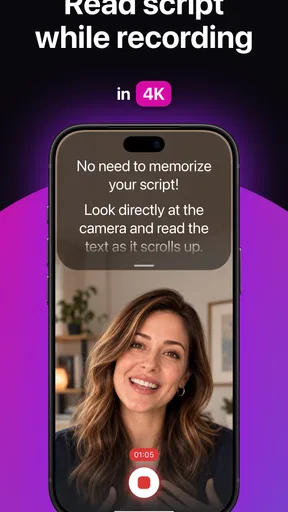
There is also a useful trade-off in keeping the script visible while filming. I can maintain eye contact more consistently than when checking notes below the lens, but I still need to place the scrolling text sensibly and choose a speed I can follow comfortably. If the words move too quickly, my delivery becomes tense. If they move too slowly, pauses become awkward. I treat the first take as a calibration pass rather than expecting the default setup to suit every speaker.
Who gets the most from the teleprompter approach
I think Evelize is particularly well suited to creators who repeat a format. A person making weekly educational clips, short reviews, guided instructions, or talking-head updates can build a reliable routine around a prepared script. It can also help people who know their subject well but lose their train of thought once recording begins. The tool removes some memory pressure without forcing the video into a highly produced style.
It is less convincing for someone who wants a complete production suite with sophisticated timelines, layered sound design, detailed color work, or extensive effects. A dedicated editor may be the better choice when the creative process depends on arranging many assets after filming. Evelize makes more sense when the spoken performance is central and the edit is meant to support it rather than become the main event.
For a realistic everyday example, imagine recording a two-minute introduction for a small online class. I would write the welcome, the learning goal, the first instruction, and the closing reminder in separate sections. With the script scrolling near the camera, I could deliver the explanation in one continuous take, then review whether the pacing felt natural. If one section sounded unclear, I would revise that passage instead of rewriting the entire presentation from memory.
Recording and shaping the first version
The recording stage is where the app’s purpose becomes clear. Rather than memorizing a complete script, I can focus on voice, facial expression, posture, and the relationship between one sentence and the next. That does not automatically make a video engaging, but it gives me more attention for the parts viewers actually notice. I found that a prepared prompt is most helpful when I already understand the subject; it supports delivery, but it cannot supply confidence or a personal point of view.
I would not write the final script and immediately publish the first take. A better workflow is to record a short test with the same camera position, lighting, and speaking speed I plan to use. This reveals whether the text is easy to track and whether my eyes appear to move noticeably across the screen. It also exposes wording that looked natural in a document but feels unnatural when spoken.
One non-obvious benefit is that a teleprompter can make revision more precise. Instead of saying, “I need to redo the whole video,” I can identify the exact sentence where the explanation becomes vague or the transition feels abrupt. I then shorten that line, add a clearer bridge, or move an important detail earlier. This turns recording into an editing loop: draft, speak, notice friction, revise, and record again.
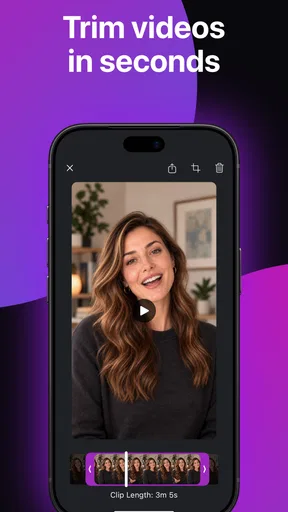
The editing side is most useful when it helps me turn that usable take into something ready to share. I approach it with restraint. If the speech is clear and the framing works, I would rather make a few purposeful adjustments than cover weak writing with effects. The app is a better fit for direct, efficient publishing than for a visually elaborate production that needs a large collection of editing controls.
Another practical tip is to divide a longer script into natural sections before recording. Even when I want the final result to feel continuous, small topic breaks make retakes easier. If the middle explanation needs improvement, I can concentrate on that part rather than trying to reproduce the opening perfectly. This is especially valuable for instructional videos, where accuracy matters more than pretending every sentence came from one flawless take.
How I handle pacing, eye contact, and retakes
Reading from a screen can create a familiar problem: the speaker sounds accurate but emotionally flat. I avoid that by writing prompts in my own everyday language and marking emphasis through wording rather than relying on formatting I may not notice while recording. I also keep the first sentence especially simple. Once I settle into the opening, it becomes easier to follow the prompt without sounding as though I am reciting it.
I would also leave room for pauses. A teleprompter encourages continuous movement, but viewers need small breaks to absorb an idea. Pausing after a key point can make the delivery clearer, and it gives me a clean place to cut if the edit needs tightening. This is one of the main differences between using the app thoughtfully and simply pasting a long block of text into a scrolling window.
For creators who are nervous on camera, the app can reduce the fear of forgetting, but it does not remove the need to rehearse. I still recommend one private run-through with the script visible and no pressure to publish. That rehearsal helps set a comfortable reading rhythm and reveals whether the text is too dense. If I cannot follow it casually, I should revise the script before worrying about the final take.
There is a clear limitation here: the quality of the result remains closely tied to the setup around the phone. A teleprompter cannot fix distracting background noise, poor lighting, an awkward camera angle, or a script that is too long for the intended format. Users expecting the app to transform an unprepared recording into a polished production may be disappointed. Its strength is reducing one specific production problem, not solving every problem at once.
Reviewing, revising, and preparing the handoff
Once I have a first version, I judge it in two separate passes. First, I listen for meaning: are the instructions complete, is the order logical, and does the ending tell the viewer what to do next? Then I watch the image: do I maintain a comfortable gaze, do cuts feel distracting, and does the visual presentation match the message? Separating these checks prevents me from overlooking unclear content simply because the video looks acceptable.
The editing workflow is most effective when I begin with a clear delivery target. For a quick social post, I may prioritize a concise opening and remove repeated phrases. For a tutorial, I would preserve pauses and explanations even if the finished video is longer. For a personal message, I might keep a small imperfection if it makes the delivery feel genuine. The app can support each approach, but the creative decision still belongs to me.
A useful trade-off is speed versus control. A mobile teleprompter-and-video workflow can help me move from idea to draft without opening several applications or transferring a script between devices. That convenience is valuable when I need to publish quickly. On the other hand, a larger editor offers more room for detailed trimming, layered media, and fine adjustments. I would choose Evelize for a focused talking video, and a broader editing application when the project is built from many visual elements.
Before handing a video to an audience, I check the beginning and the final few seconds especially carefully. The opening should explain why the viewer should continue, while the ending should not feel like the script simply ran out. Because the app encourages planned speaking, it is easier to write a deliberate close rather than relying on an improvised sign-off. That small change can make a short clip feel complete.
The app is free to install, with optional in-app purchases ranging from around three dollars to around one hundred fifty dollars per item. I would therefore begin with the free experience and decide whether it fits my recording habits before spending anything. The wide purchase range makes it sensible to inspect what each optional item provides and whether it addresses a real need in my workflow. I would not pay simply because a feature sounds useful in theory; I would first identify a recurring limitation in my own projects.
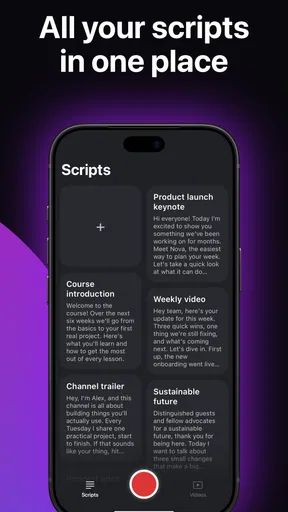
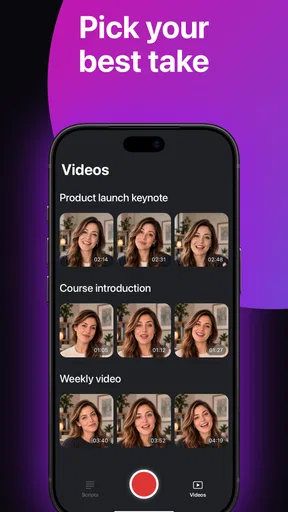
For a creator handing work to another person, the most important preparation is consistency. I would keep scripts organized by project, record with a repeatable framing setup, and review the final clip on the device where it will be shared. Even without turning the app into a full production system, that routine reduces avoidable mistakes. The teleprompter handles the speaking structure, while a simple checklist handles the delivery stage.
How it compares with familiar alternatives
Compared with reading notes from a second phone, Evelize offers a more unified approach. A separate device can work, but it introduces extra positioning, more visual movement, and another point of failure. Compared with memorizing a script, the app reduces the chance of forgetting details, though memorization can still produce a more spontaneous performance for people who are comfortable with it.
Compared with a standard camera app, its advantage is not necessarily the camera itself. The difference is the preparation layer placed directly into the recording process. A regular camera is simpler for spontaneous footage, while Evelize is more useful when the exact wording matters. Compared with a full desktop editor, it favors immediacy and a mobile-first workflow over deep post-production control.
That comparison also clarifies who should skip it. If your videos are mostly live events, fast-moving scenes, music performances, or visual montages with little narration, a teleprompter may add unnecessary preparation. If you already have a comfortable script-and-camera setup and need advanced editing above all else, a dedicated editor may be a better investment. Evelize earns its place when speaking to the camera is the central creative task.
My final view on Evelize for everyday creators
After using it as a complete workflow rather than a novelty, I see Video Teleprompter - Evelize as a focused tool for people who want to speak clearly on camera and move quickly toward a finished video. Its strongest idea is simple but useful: keep the script close to the recording process, then give the creator a path toward editing instead of forcing a separate set of tools from the start.
The app has a 4.7 average from around one thousand six hundred ratings, and it has passed over ten thousand installs. Those figures suggest that the concept is resonating with a meaningful group of users, but I would still judge it by the kind of content I make. Popularity does not change the central question: do I regularly need help remembering and delivering prepared words while filming?
Vectora Ltd released the app on January 21, 2024, and the current version is 1.35. It supports devices running Android 7.0 or later, which keeps it accessible to people using older Android hardware. That matters for creators who do not own a recent flagship phone, although recording quality will still depend on the device, lighting, microphone, and surroundings rather than the teleprompter alone.
My recommendation is strongest for educators, reviewers, small-business owners, presenters, and short-form creators who want a repeatable way to record direct-to-camera material. I especially like the workflow for scripts that are too detailed to memorize but too personal to outsource. With sensible pacing, short spoken sections, and a deliberate review pass, the app can make recording less stressful and revisions more targeted.
The key is to treat the prompt as a delivery aid, not a substitute for preparation. Write for the ear, test the scrolling rhythm, keep the camera position consistent, and revise the sentences that sound artificial. If your projects need extensive visual layering or advanced post-production, choose a more specialized editor. If your main obstacle is getting the right words out naturally while filming, this free starting point is worth trying before building a more complicated setup.
Verdict
Strengths of Video Teleprompter - Evelize
- Scroll speed and text size are easy to adjust while recording.
- Front and rear camera support provides flexible shooting options.
- Helps maintain eye contact and reduce retakes during presentations.
- Useful for videos, tutorials, interviews, and social media content.
- Simple interface makes it approachable for first-time teleprompter users.
Limitations of Video Teleprompter - Evelize
- Some features may be restricted or limited in the free version.
- Long scripts can be harder to manage on smaller phone screens.
- Recording quality depends heavily on the device’s camera and lighting.
- Reading naturally may require practice with the chosen scrolling speed.
- Potential subscription or in-app purchase costs may not suit occasional users.
Similar Picks in This Category
View All
Google TV
Google LLC3.9

iTunes
Apple4.7

YouTube
Google LLC3.8

MX Player
Amazon Mobile LLC4.2

CapCut - Video Editor
Bytedance Pte. Ltd.3.5

PLAYit-All in One Video Player
PLAYIT TECHNOLOGY PTE. LTD.4.5
Frequently Asked Questions
What is Video Teleprompter - Evelize used for?
Video Teleprompter - Evelize is designed to help you record videos while reading a prepared script on your device’s screen. It can be useful for presentations, tutorials, social media clips, online lessons, interviews, and business content. The teleprompter-style display lets you maintain eye contact with the camera more naturally instead of repeatedly looking down at notes or memorizing every line.
Can I customize the script and scrolling speed in Video Teleprompter - Evelize?
The app is intended to make script reading more comfortable by allowing users to adjust important reading settings, such as text size, display layout, and scrolling speed, depending on the available version and device. These controls are particularly helpful when switching between short social videos and longer presentations. Before recording, it is worth previewing the script and testing the speed so your delivery sounds natural.
Does Video Teleprompter - Evelize record videos with the script visible?
Video Teleprompter - Evelize is built around the idea of recording yourself while the script remains available for reference on screen. The exact recording workflow can depend on your phone model, camera permissions, and the version installed. Users should check whether the app supports their preferred camera orientation, front-facing camera, and export options before creating an important video, especially if high-quality production is required.
Is Video Teleprompter - Evelize free to download and use?
The application may be available to download without an upfront charge, but some features can depend on the current pricing model, advertisements, or optional in-app purchases. Potential restrictions may include advanced recording tools, script limits, branding, or premium customization. It is recommended to review the store listing and subscription details before confirming a purchase, particularly if you plan to use the app regularly for professional content.
What permissions does Video Teleprompter - Evelize require?
To provide its main functions, Video Teleprompter - Evelize may request access to the camera and microphone, and it could also need permission to save videos or scripts on your device. These permissions are normal for a recording application, but you should review them carefully and only grant access that you are comfortable providing. If recording does not work, checking the phone’s privacy settings is a useful first step.
